
Requirements
Two views show requirements and the tasks that cover them: Requirements, a table with each requirement’s coverage, and Trace, the same as a graph. Both are offered when the shown file or folder defines requirements, or has tasks that cover some.
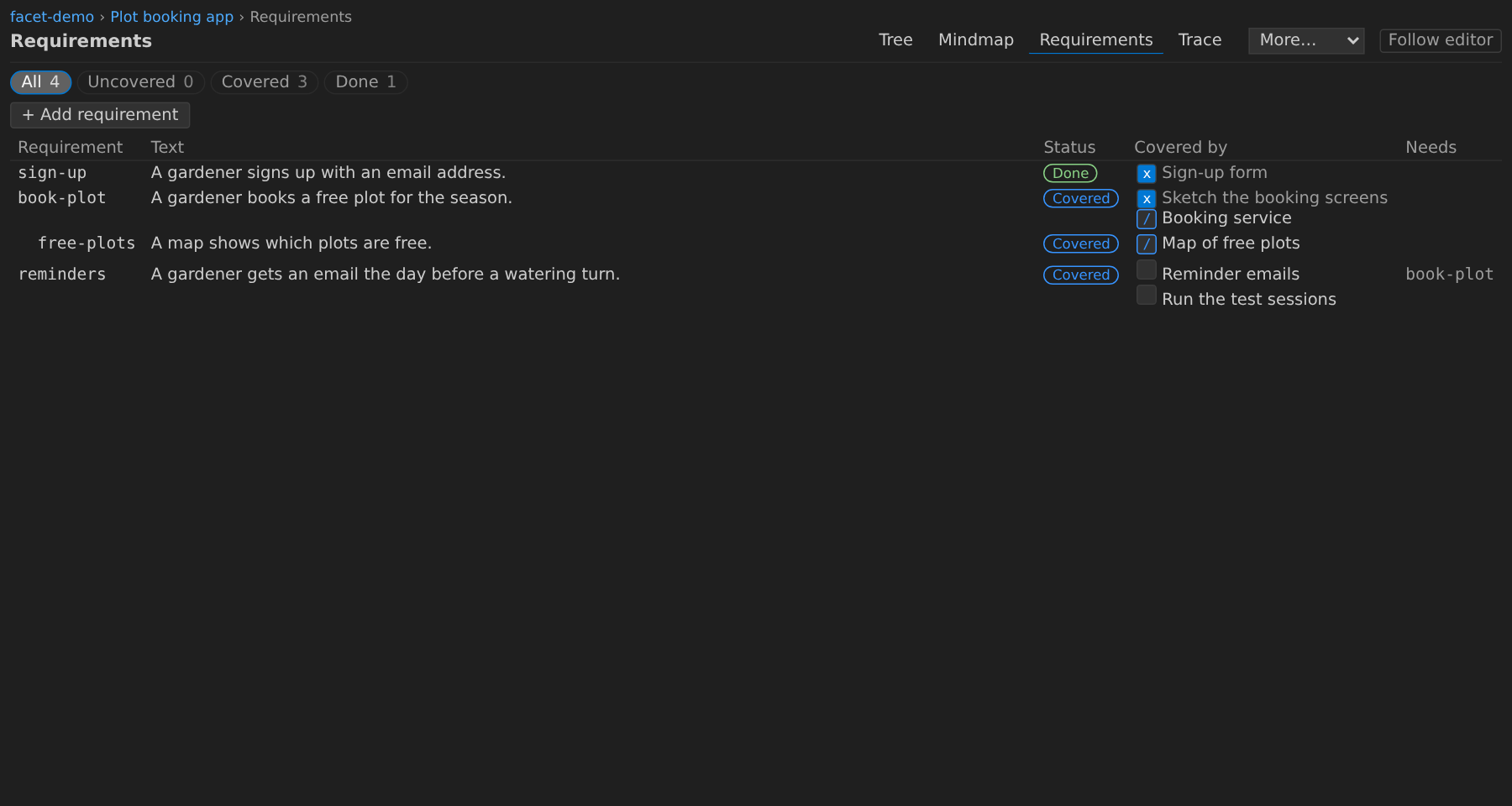
A requirement is a list item - req~name: text. A task covers it with
covers:: req~name. See Requirements.
## Requirements
- req~sign-up: A member signs up with an email address.- req~reminder: A member gets a reminder the day before a shift.  Needs: req~sign-up
## Work
- [x] Sign-up form [covers:: req~sign-up]- [ ] Reminder emails [covers:: req~reminder]
Coverage
Section titled “Coverage”Each requirement has one of three statuses:
- Uncovered: no task covers it.
- Covered: tasks cover it, but not all of them are done.
- Done: all its covering tasks are done.
Coverage is explicit per requirement: a task covering a parent does not cover its children. A parent counts as covered when a task covers it directly or when all its children are covered; one covered only through its children is done when they all are. Coverage counts tasks from the whole workspace, so a requirement in one file can be covered by tasks in another.
Requirements table
Section titled “Requirements table”One row per requirement: its name, text, status, the tasks that cover it
(with their states) and its Needs:. Requirements defined in another file
and covered by tasks here are listed too.
- The All, Uncovered, Covered and Done buttons filter the table and show the count of each.
- + Add requirement opens the composer. Type
name: text; Facet writes- req~name: textafter the selected requirement, else after the file’s last top-level requirement, else in the section you pick. A name that is already defined is refused. - Delete or Backspace deletes the focused row. On a covering task, it deletes that task, not the requirement.
- Click a row to select it and see its details. Ctrl+click (Cmd+click on macOS) or “Go to line” opens its line.
Trace graph
Section titled “Trace graph”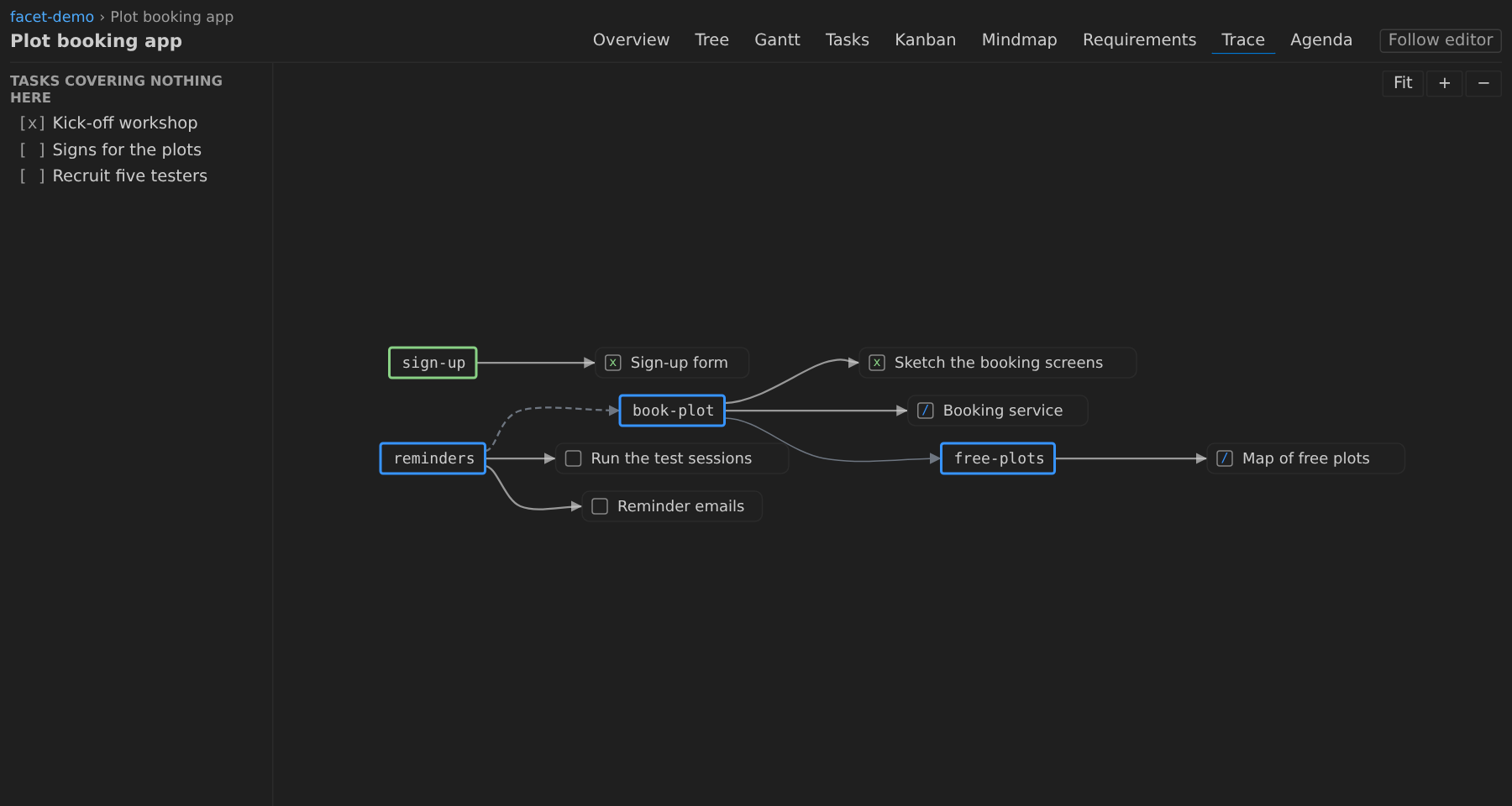
The Trace graph lays out requirements, their nested and needed requirements,
and the tasks that cover them, left to right. Arrows stand for covers,
nesting and Needs:. Hover a node to highlight its arrows. Tasks of the
shown file or folder that cover nothing are listed beside the graph, under
“Tasks covering nothing here”.
- Drag the background to pan; the wheel or the zoom buttons zoom; Fit shows the whole graph.
- Add coverage: drag a task (a box in the graph, or an entry of the
side list) onto a requirement. Facet appends
req~nameto the task’scovers::, adding the property when it is missing. - Remove coverage: click a covers arrow and press Delete. Facet removes
that name from
covers::, and the property when it was the last one. - Delete on a selected node, with no arrow selected, deletes the node.
- With the keyboard, the arrow keys move between nodes, Home goes to the first and Enter selects.
Nesting and Needs: are not edited in the graph: change them in the text.
A task whose covers:: is not a list of req~ names is refused until its
text is fixed.